Save PDF Pages as Images
Here is an Automator application to save each page of a PDF file as an image. You can do this with Preview, but it is tedious for documents with many pages.
Download “Save PDF Pages as Images.app” (219 KB; Mac OS X 10.5 required)
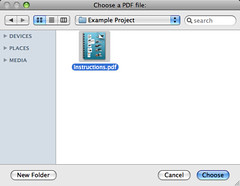
When you run the application, it begins by prompting you to select a PDF file. You can select any sort of file, but nothing much will happen if it’s not a PDF.
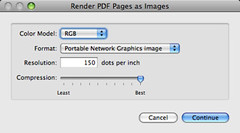
Next you can choose the output image format. 150 DPI PNG is the default format. I don’t think the compression setting applies to PNG images, but it does apply to JPEGs.
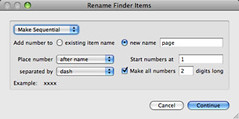
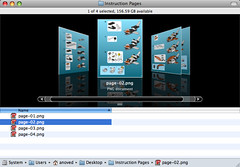
Rendering the images may take a moment. Then you’ll be asked to define how the output files should be named. I recommend the “Make Sequential” option. By default, page images from a three-page document will be named page-01.png, page-02.png, and page-03.png.
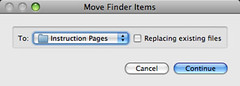
Lastly, you can choose where to save the results. Choose “Other…” from the menu to select a folder that doesn’t appear among the default locations.
Now you have an image of each page in the PDF.
Posted on Tuesday, November 18th, 2008. Tags: automator, mac, pdf.
4 Responses to “Save PDF Pages as Images”
Posted by Anonymous on Tuesday, December 9th, 2008 at 11:20 AM.
This does not appear to work in 10.4.
I downloaded, unzipped, and double clicking the app or dropping PDFs on it does nothing.
Does it need 10.5 or soemthing?
Posted by Jim on Tuesday, December 9th, 2008 at 12:01 PM.
Yes, it probably does require 10.5. I will add a note to state that clearly.
Posted by nicole on Thursday, December 11th, 2008 at 1:53 PM.
This program is EXACTLY what i needed!
it works wonderfully overall, although i’m having some trouble with the CMYK setting–changes my pdf into a ‘negative’…RGB is perfect tho.
Thanks so much for creating/sharing this program! =)
Posted by Aidan on Thursday, May 20th, 2010 at 1:39 PM.
Thanks very much for this. I had a big PDF full of cards for our Ninja Pirate Zombie Robot game and this was a very easy way to make them all individual images for my screen saver :-)