Calibre Content Server
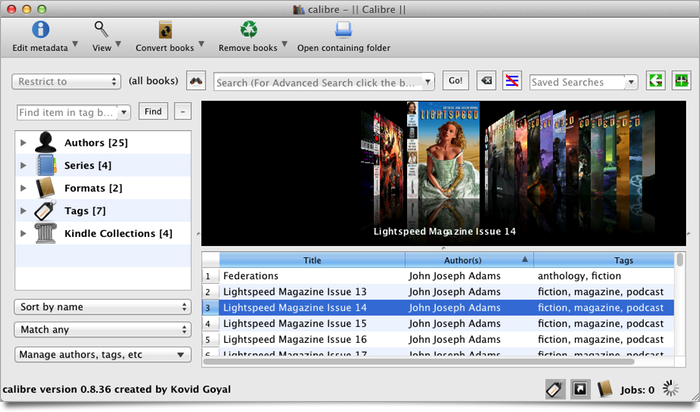
Calibre is an ebook management application. You can use it to convert ebooks to different formats, to edit metadata, or to organize and browse your ebook library. It can also act as a “Content Server”, providing an easy way to publish a searchable online catalog of your ebooks. This feature is useful for accessing your ebooks on different computers and devices. It could also be useful for libraries or research groups interested in sharing material over the internet.
In this post, I’ll show how to setup the Calibre Content Server and share a few examples.
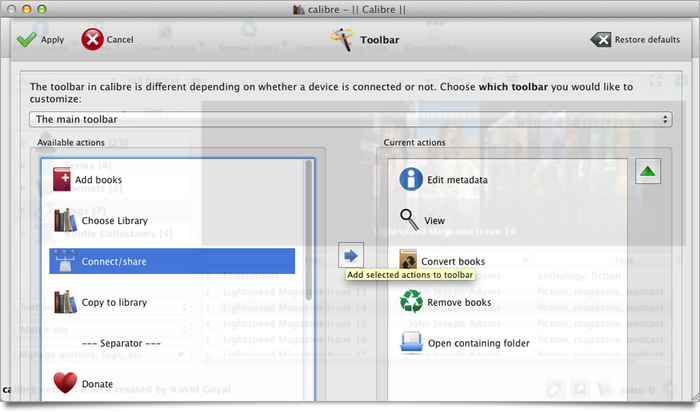
The Calibre interface can appear pretty complicated at first. In the screenshot above, I’ve already simplified it to suit my needs by adjusting Preferences > Interface > Toolbar > The main toolbar. The buttons in the bottom right of the window toggle the panels surrounding the central list of books: the tag browser, the cover browser, and the selected book details (hidden).
You can use the Connect/share toolbar button to turn the Content Server on and off. If it’s not already visible, visit the toolbar preferences again and add it to the list of current actions:
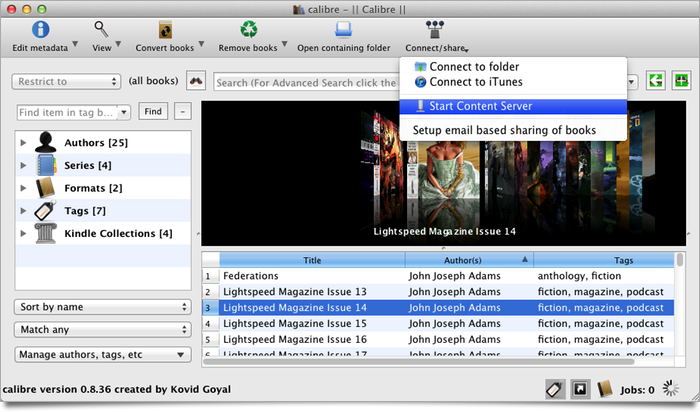
Then, to share your ebooks, select Start Content Server from the Connect/share button menu. (Depending on your system settings, at this point your computer might ask if you want to grant Calibre network access; if so, approve the request.)
(By default, no password is required to access the Content Server. I’ll show you how to set a password and a few other options in a bit.)
Now go to your web browser and enter 127.0.0.1:8080 as the URL. (127.0.0.1 is a special address that refers to your own computer; 8080 is the default port of the Calibre Content Server.) You’ll see a nice catalog screen generated by Calibre:
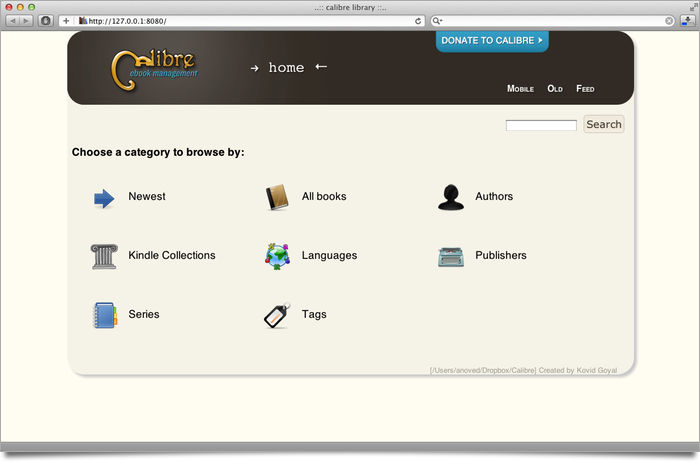
You can browse the library by any of the provided categories, or you can enter a query in the Search field. Searching is sensitive to metadata as well as title and author, so you can search by publisher, publication date, ISBN, or any other attributes associated with the items in your library.
Here I’ve searched for issues of Lightspeed Magazine and clicked the Details link to see more information about an issue. If your ebooks have cover art, Calibre does a nice job incorporating it into the interface.
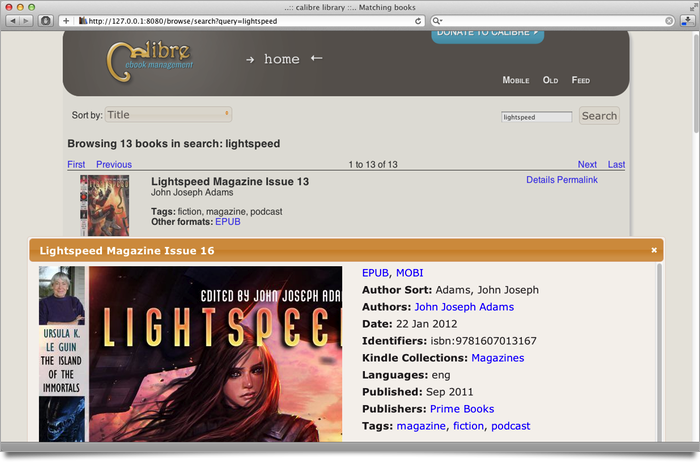
To download the ebook, click the Get button that appears under the cover art in the search results (not visible above), or click any of the format links to download the book in a specific format (EPUB, MOBI, etc.). Of course, in this example, we’re browsing the catalog on the same computer the server is running on, so we already have access to all the content.
To browse the catalog from a different computer on the local network, replace 127.0.0.1 with the server’s actual IP number. On a Mac, you can find this under System Preferences > Network.
Now may be a good time to set a password. In Calibre, go to Preferences > Sharing > Sharing over the net to specify a password. You can also choose to start the Content Server automatically whenever Calibre is running.
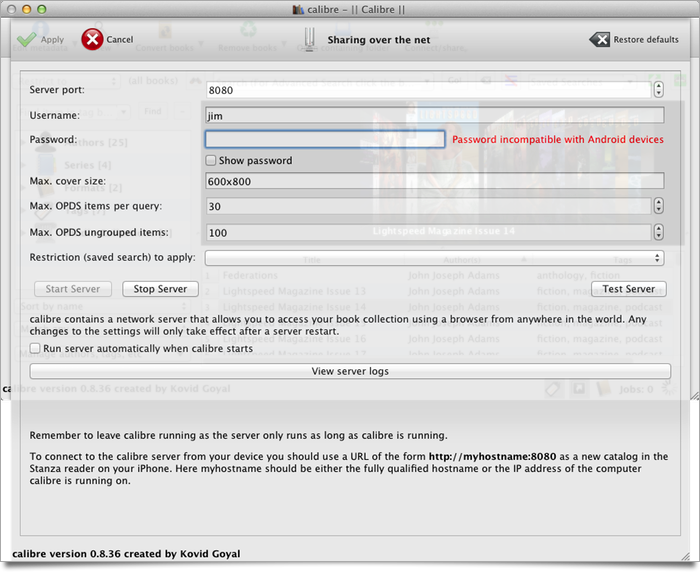
Visitors will now be prompted to provide the username and password before the catalog is displayed.
You can access the catalog from other devices, too. On a Kindle, press Home > Menu and go to Experimental > launch browser. Enter the server’s address (in my case, it’s 192.168.1.5:8080, but your network will differ). If you set a password, you’ll be prompted to log in.
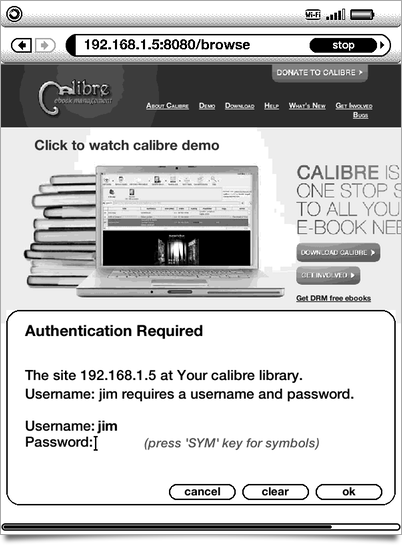
Although the Kindle keyboard is cumbersome, the browser can navigate the catalog competently.
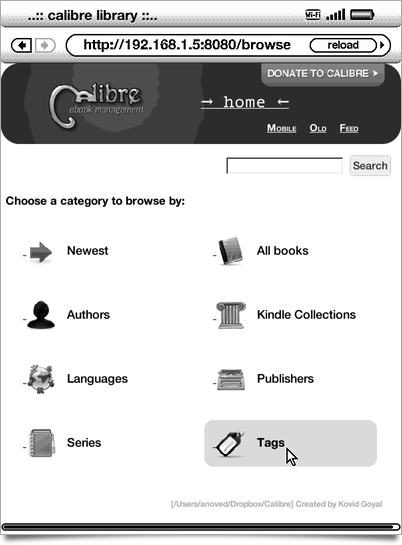
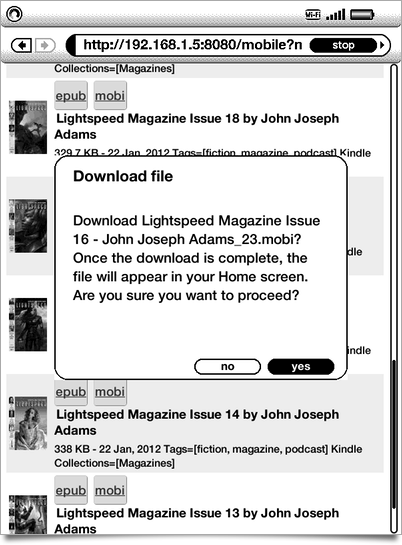
Note that I’ve appended /browse to the URL to explicitly request the full interface. Otherwise, a simplified mobile listing appears. In either case, select a MOBI link to download the ebook directly to the Kindle:
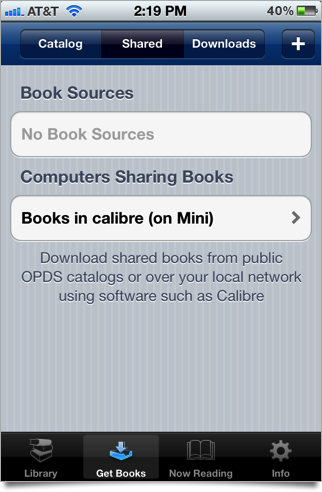
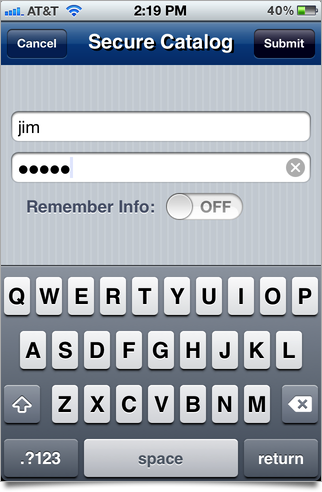
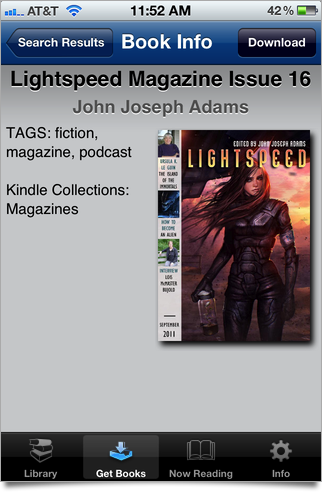
You can browse the catalog with Safari on an iOS device, although an even smoother solution is to use a free e-reader app called Stanza (although Stanza’s long-term future is unclear, since it was bought by Amazon). Go to Stanza’s Get Books > Shared tab; if you’re on the same local network as the Content Server, it should appear automatically under Computers Sharing Books. (You can also click + to add it manually to the list of Book Sources.) Select the server and log in.
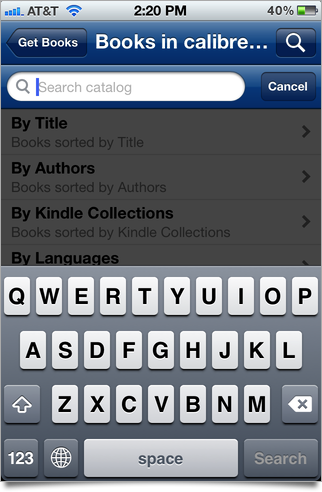
Stanza will present a searchable list of categories, similar to the web interface. When you select an ebook, tap Download to save it to your Stanza library.
iOS Update, May 2013: Today I use Shubook SE instead of Stanza to read ebook files on my iPhone. It too can connect directly to catalogs such as Calibre’s content server. The connection process is similar to the steps described above; see here for a detailed guide.
Making your ebook catalog available over the internet (not just your local network) is possible, but the configuration depends on your network. For home networks, a few router settings may be sufficient (I’ll consider a follow-up post with details). In an institutional environment with more complex technical or political characteristics, it may be less feasible.
Posted on Thursday, January 26th, 2012. Tags: books.
5 Responses to “Calibre Content Server”
Posted by Paulo on Wednesday, May 16th, 2012 at 6:53 AM.
Hi Jim,
Thanks for this amazing tutorial about using Calibre.
It´s one of the best I found.
I have one doubt: Do you know if it is possible to instead of using my home computer as a server, use a web hosting? (For example where I have my personal web site).
So I can access my library without need to keep my home computer always on.
Another solution would be to have a portable copy of Calibre (in a USB always with me or install it in a friend´s computer)and change the library location for an online folder or address. Can I use Dropbox in this case or my own website?
This will be great to share my ebook library with my wife or a small group of friends and stil have the great calibre interface to navigate the ebook library.
Thanks in advance.
I hope you could help me.
Rgds, Paulo
Posted by Jim on Wednesday, May 16th, 2012 at 7:23 AM.
Hi Paulo,
Thanks. I think it is possible to run the content server on a web server, although I have not done so myself so I can’t offer any details. There are command-line tools for many Calibre functions, including
caliber-server. See http://manual.calibre-ebook.com/cli/cli-index.html for details.Hope that helps!
Posted by Paulo on Wednesday, May 16th, 2012 at 8:48 AM.
Thanks Jim,
Maybe in the future we could have a tutorial about moving Calibre to a web hosting service in your blog.
This would really set this page beyond the average.
Best.
Posted by Crystye on Saturday, June 30th, 2012 at 5:28 AM.
This is a great tutorial. You have instrudtions for using Calibre with the Kindle – would it be possible to get a how-to for the wifi Nook Tablet? It looks like using Calibre with Android devices may be more tricky than some others.
Posted by Jim on Saturday, June 30th, 2012 at 7:17 AM.
Thanks – I’m glad you like the tutorial.
Unfortunately, I can’t provide much help for the Nook tablet or other Android devices because I don’t have one to experiment with. I wrote about using Calibre with the Kindle because I do have a Kindle.